Path:
 , Plant calendar, Main page
|
Path: |
|
|
|
|
|
Purpose |
Set real-time rules (i.e.: set points) or long-term rules (i.e.: start/stop) in a weekly calendar. These rules are applied in the same way on all variables in a category (i.e.: lighting) while hey can be differentiated for different device groups (i.e.: showcase-lighting, closet-lighting). Manually set digital, integer and analog values on variables in the same group. Enable/disable group scheduling. |
|
Description |
Use this function to assign values to analog and integer variables at a certain time of the day. Rules are repeated for all the weeks in the year. Exceptions can be created and repeated with priority over the standard calendar. |
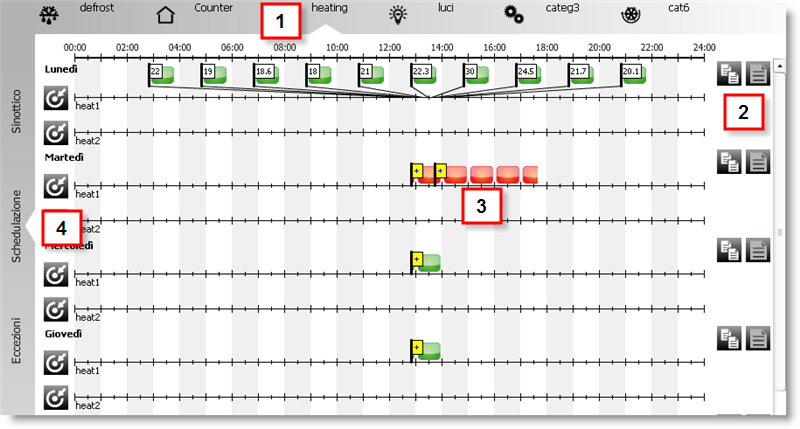
|
1 |
A tab for each variable category. |
|
2 |
Keys to copy/paste periods of the day on another day for groups in the same category. |
|
3 |
Example of overlapping intervals or intervals copied from another group that require checks.. |
|
4 |
Standard and exception calendars and list of time intervals for each group. |
|
|
Day intervals can be copied to different categories but these are shown in red. You must view the detail of each interval and confirm. |
|
|
Up to 10 intervals can be set for each group in one day. Red intervals mean there are potential inconsistencies and interval overlaps. Resolve the problem before saving. In the event of two consecutive time intervals (i.e.: change set point in a mixed category) or overlapping intervals in the day, start/stop will not be run and only the integer/analog value will be changed. |
 Standard calendar setup actions
Click on Scheduling [1] tab and on a category [2]:
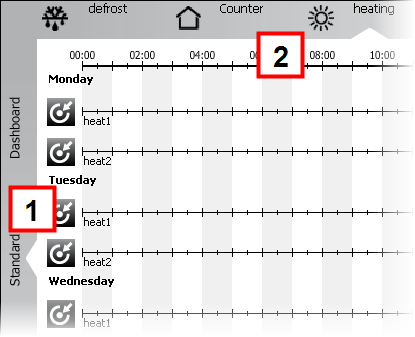
On the day where the rule is to be added, click  : a window will appear where you can set the interval and value
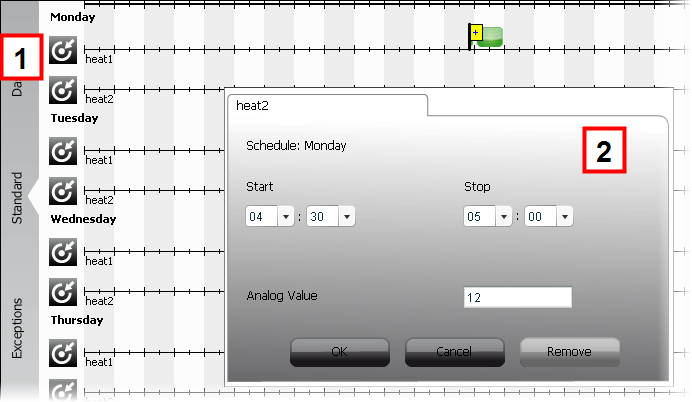
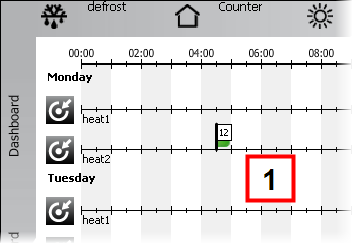
Click Ok: the interval appears in the synoptic.
Click 
Special day setup actions
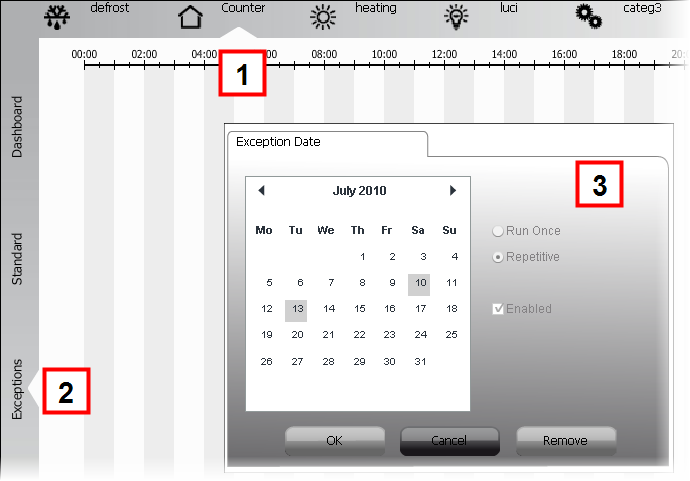
Click on a category [1] and on the Exceptions [2] tab: the window appears where you can set the event date, annual repetition and enable. Other days with scheduled exceptions are displayed.
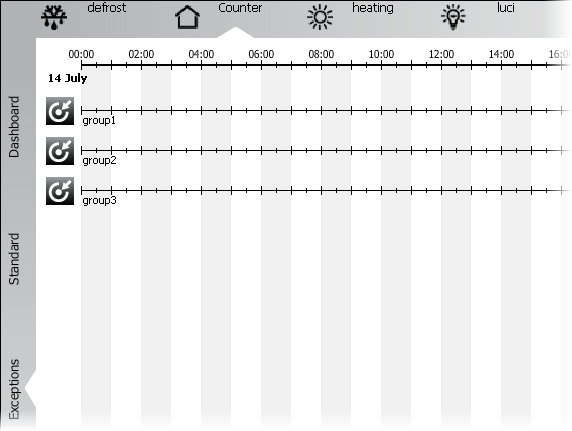
Click Ok: the time axis appears for each group.
On the day where the rule is to be added, click : a window will appear where you can set the interval and value
Click Ok: the interval appears in the synoptic.
Click
Actions shared by all calendars
Click  on the day where rules are to be copied.
Keys  for days where they can be copied are enabled.
Click  on the day where the rules are to be copied.
Click
Expand [1] any consecutive intervals:
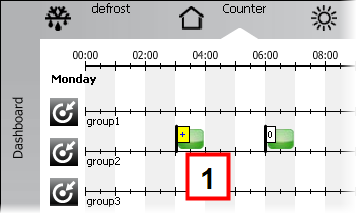
Click on the visible interval[1]:
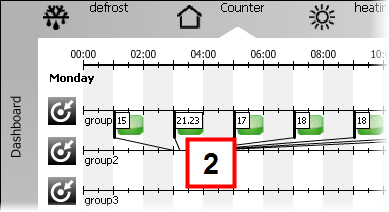
Edit the value in the popup window and click Ok.
Or click Delete
Click
Other actions
Common used buttons
|
|
Create a new rule interval |
|
|
Copy the intervals in a day |
|
|
Paste copied intervals to another day. |
 See also
-
PlantVisorPRO Locale 2.2.0 -

