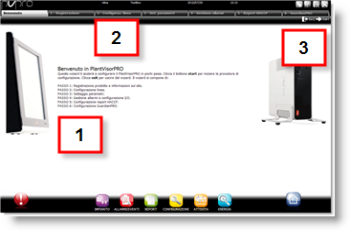
Start setup Wizard
-
Wizard introduction page
-
Wizard pages
-
Keys to exit the Wizard and move to the first Wizard step.
 Action
-
Click Start [3] to start the Wizard.
-
Click Exit [3] to exit the Wizard.
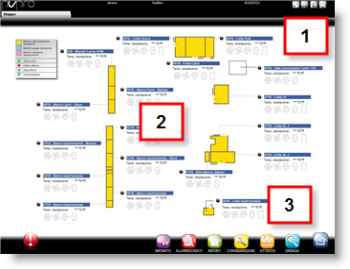
Document
-
Keys to change the password, open this help and to log out
-
Devices with temperature and status values
-
User enabled functions
Action
-
Click a sensitive element [2] on the synoptic map
-
Move the mouse cursor over the function icons to display enabled menu items
-
Exit the session [1]
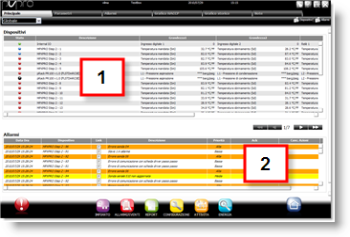
Global
-
Device list
-
Active alarm list
Action
-
Double-click a device [1] to open the details page.
-
Double-click a active alarm [2] to open the details page.
-
Move the mouse cursor over the function icons to display enabled menu items
-
Exit the session
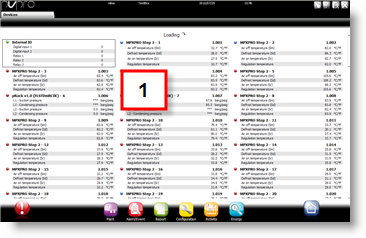
Devices
-
Device list with probe status and variables
Action
-
Double-click a device [1] to open the details page.
-
Move the mouse cursor over the function icons to display enabled menu items
-
Exit the session


 See also