|
Path: |
|
|
|
|
|
|
|
|
Purpose |
Configuration: optimize curves (with limits), customize graphs and curve colors on the global, group or single device levels. Analyzes the behavior of one or more devices in a given time band, comparing log data readings and status. |
|
Description |
Sets colors, limits and general layout. Create a graph using all the log variables recorded by the system. |
|
What to do first |
Set single log variable recording modes (see chapter Device configuration: log variables). |
|
|
Changes made on the device level effect device, group and global graphs. Changes made on the group or global level only effect their relevant graphs. Whenever a variable is added, click For further information on limits and graph behavior with an off line device, see Graphs: basic concepts. Up to 20 variables are admitted in a graph. |
How to set a graph
At the bottom of the page, click Customize: the window appears with parameters
Enter data (note those not described are intuitive):
|
ViewFinder |
Enables the reference line which shows, for each curve point, recording time and value. |
|
ViewFinder background color |
Reference line color and recording time label color. |
|
ViewFinder text color |
Color of label text with recording time |
Click Save.
How to display a graph
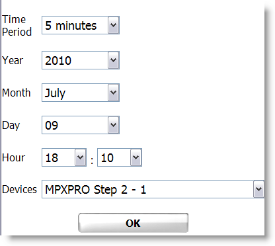
At the bottom of the page, click Search: a window appears where the time band can be set and, for group or global graphs, the device can be selected.
|
Band |
Band displayed in the time window.
|
||
|
Year |
X axis point of origin in the first displayed screen.
|
||
|
Device |
Name of the device from which variables are extracted |
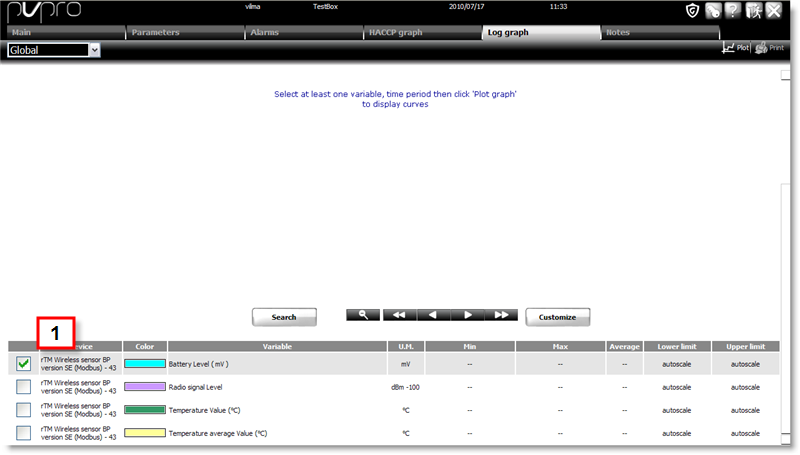
Click OK to confirm: the log variables for the selected device will be added at the bottom of the page [1]
Select the variables to be included in the graph.
|
|
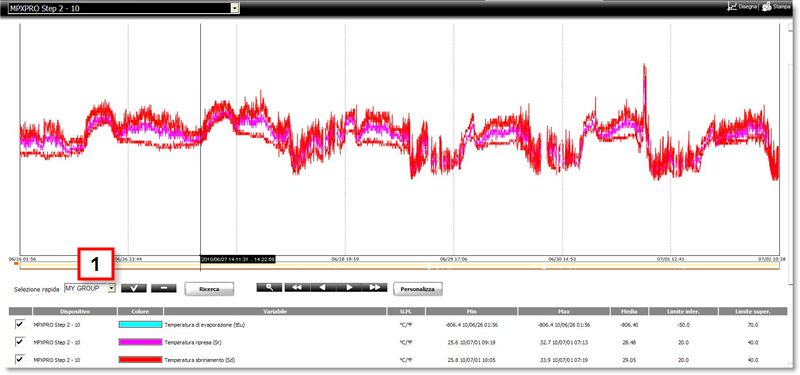
Analog and Integer variables are always at the top of the list, Boolean variables are always at the bottom. Variables are ordered by device serial address first and then alphabetically by description. The group list also appears in[1]. |
To add other device variables from Global, click Search and repeat steps from point 1.
|
|
Variables with different limits and different analysis bands can be displayed on the same graph. For different limits, the Y axis dynamically adjusts when the variable is selected from the list. For different time bands, the graph adjusts to the shorter time band. |
Once the variable list is completed, click
to update the graph.
Double-click the variable in the list
Assign a color to each variable
For similar variables, edit the maximum and minimum limits. If limits are not set, the graph automatically resizes.
Click on another point in the window
To update the graph, click
[3].
Other actions
Identifying curves
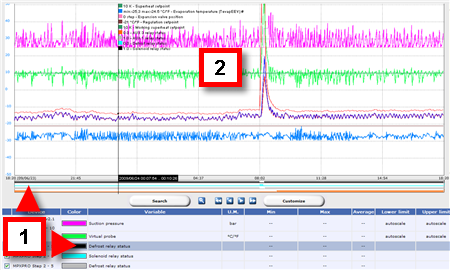
Boolean variable trends are shown in the lower part of the graph[1]. Analog and Integer variable trends are shown in the upper part [2].
Displaying the reference line
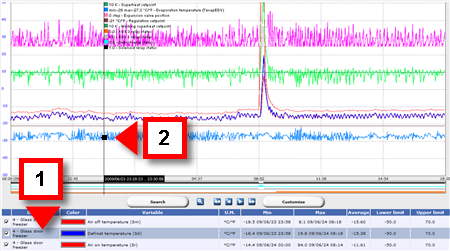
Click on an Analog or Integer variable row[1]: the curve is highlighted and the point on the reference line[2 ] moves to the highlighted variable.
Double-click the graph background: the reference line disappears
Display recorded data and average values in the time band
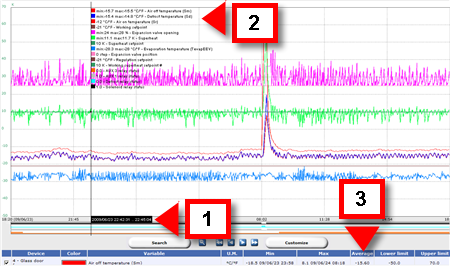
The sample time indicated by the reference line [1], appears in the black box [1].
The sample value indicated by the reference line [1], appears in the key [2].
Displayed minimum, maximum and average variable values appear in the list row [3].
|
|
In any case, all the values of the points intersected by the line appear in the key. Maximum and minimum limits can be set during graph configuration. If they are not set, default device limits apply. A value that exceeds set limits is not displayed. |
Expanding the curve
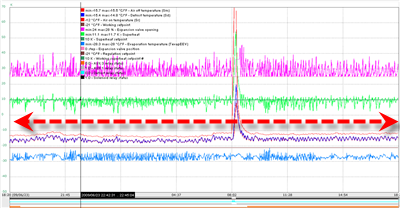
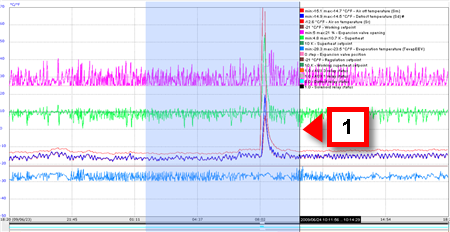
Click on a point on the graph and drag the mouse [1] to select the time band to be expanded (zoom in).
Release the mouse: the graph is re-drawn in the new time band.
Other actions
|
|
Shrinking a curve |
|
|
The variable curve disappears from the graph To add it again, click Search. |
|
|
Printing the graph. |
See also
PlantVisorPRO Locale 2.2.0 -