 Checking alarms and events
Check for alarms
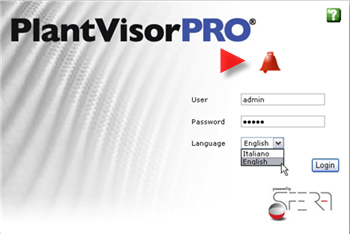
The icon  on the logon page indicates that there are current alarms.
Enter the program, click on the icon at the lower left: the current alarm page opens:
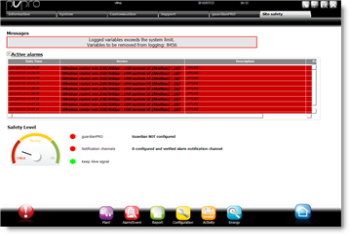
Check and print global alarms
In ALARMS/EVENTS, Alarm list check and print triggered alarms (see chapter Active alarms).
Double-click an alarm to open details and acknowledge the alarm or stop actions or force clear if the alarm is insignificant (see chapter Alarm details)
In ALARMS/EVENTS, Cleared alarms page, check and print cleared alarms and double-click to open alarm details (see chapter Cleared alarms).
Check and print global events
In ALARMS/EVENTS, Event list check and print the event sequence, starting from the most recent event (probably near the date-time of the first alarm) to the event that caused the alarm (see chapter Events).
If necessary, run a targeted search
In ALARMS/EVENTS, Search, find and print alarms and events that meet search criteria (see chapter Alarm search and Event search).
For further information, see chapter Alarms and events: basic concepts
Check for alarms
If the icon does not appear on the logon page, check general site or assigned area operations or check alarms.
Display device summary
In PLANT, Devices view the device list with status variables and probes (see chapter Site: devices).
View site synoptic maps
In PLANT, Maps view the main synoptic map and navigate in other maps to check acquired data (see chapter Maps: synoptic maps).
|
|
Synoptic map structure, aspect and navigation modes depend on the designer. Refer to any instructions for use issued during installation. |
Display all devices
In PLANT, Global check the device list with status and main probe values (see chapter Monitoring: main page).
Display a device group
In PLANT, Global, <groupName>, check the device list with status and main probe values (see chapter Monitoring: main page).
For further information, see chapter Monitoring: basic concepts
Printing a HACCP and log report
Printing reports
In REPORT, Report select a report template and indicate the log period.
or
Printing a scheduled report
In REPORT, Report file filter the type of report to be displayed.
For PDF reports, print directly from PlantVisorPRO (see Printer setup),
For CSV reports, export or print from remote.
For further information, see chapter Report: basic concepts
Editing service parameters and devices
Checking device status and editing parameters
In SITE, Global, double-click a device, Main page to:
check device status,
check probe values,
set main parameters,
control the unit (i.e.: reset alarms or turn off the unit)
(see chapter Monitoring-device: main page)
Editing device parameters (i.e.: setpoint).
In PLANT, Global double-click a device, Parameters page: set service parameters (see chapter Monitoring- device: parameters)
If necessary, propagate the same settings on the same parameters for all similar devices
Editing device group parameters (i.e.: setpoint)
In PLANT, Global, <groupName>, Parameters page, set a value on several parameters simultaneously (see chapter Monitoring: parameters)
For further information, see chapter Devices: basic concepts
|
|
Only authorized users can access these functions. |
PlantVisorPRO Locale 2.2.0 -
